Reporting Contact
Overview
The Contact Reports feature allows you to report inaccurate, outdated, or unreachable contact information within Deep Enrich.
If a contact's email address or phone number is incorrect, no longer active, or cannot be reached, you can submit a report for review. Depending on the issue and the resolution option you select, Deep Enrich may provide updated contact information, issue a credit refund, or both.
When Should You Report a Contact?
You can submit a report if:
- The email address is invalid or incorrect.
- The phone number belongs to the wrong person.
- The email address is no longer active.
If you encounter any of the above issues, we recommend submitting a report so our team can review and resolve it accordingly.
How to Report a Contact
Follow these steps to report an issue with a contact:
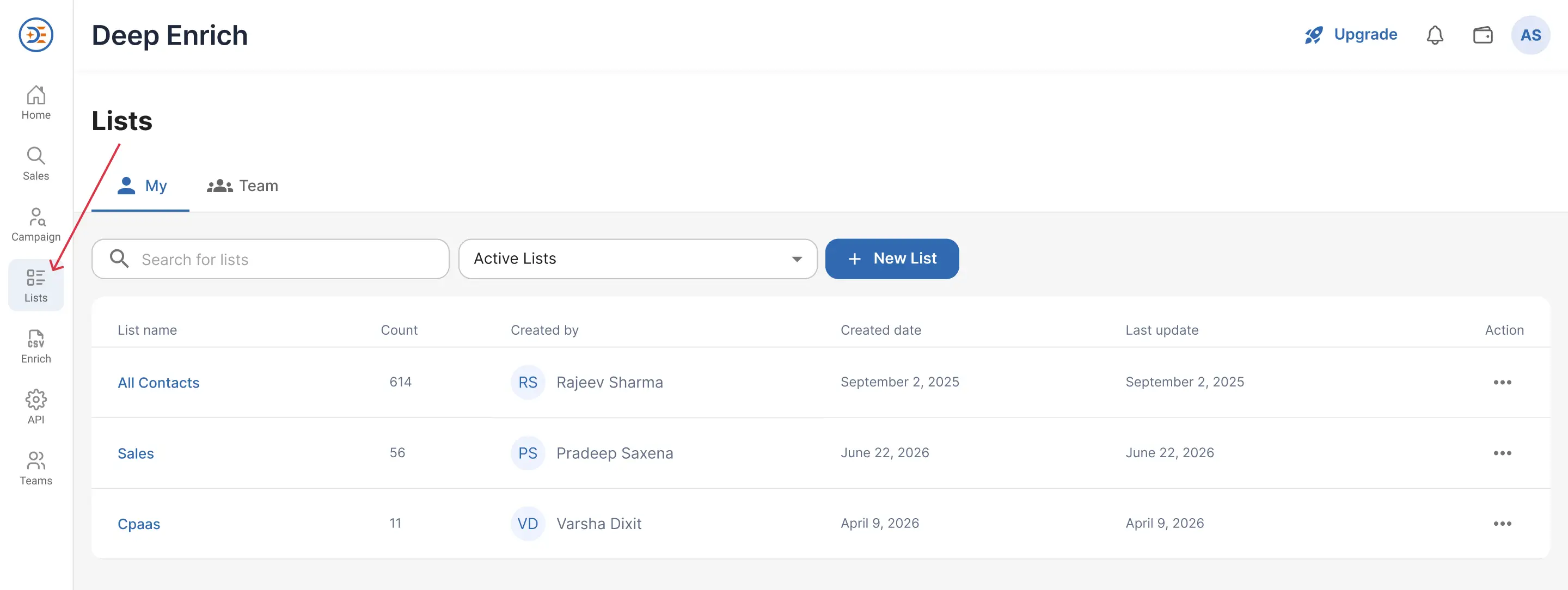
- Log in to your Deep Enrich account.
- Click Lists from the left navigation panel.
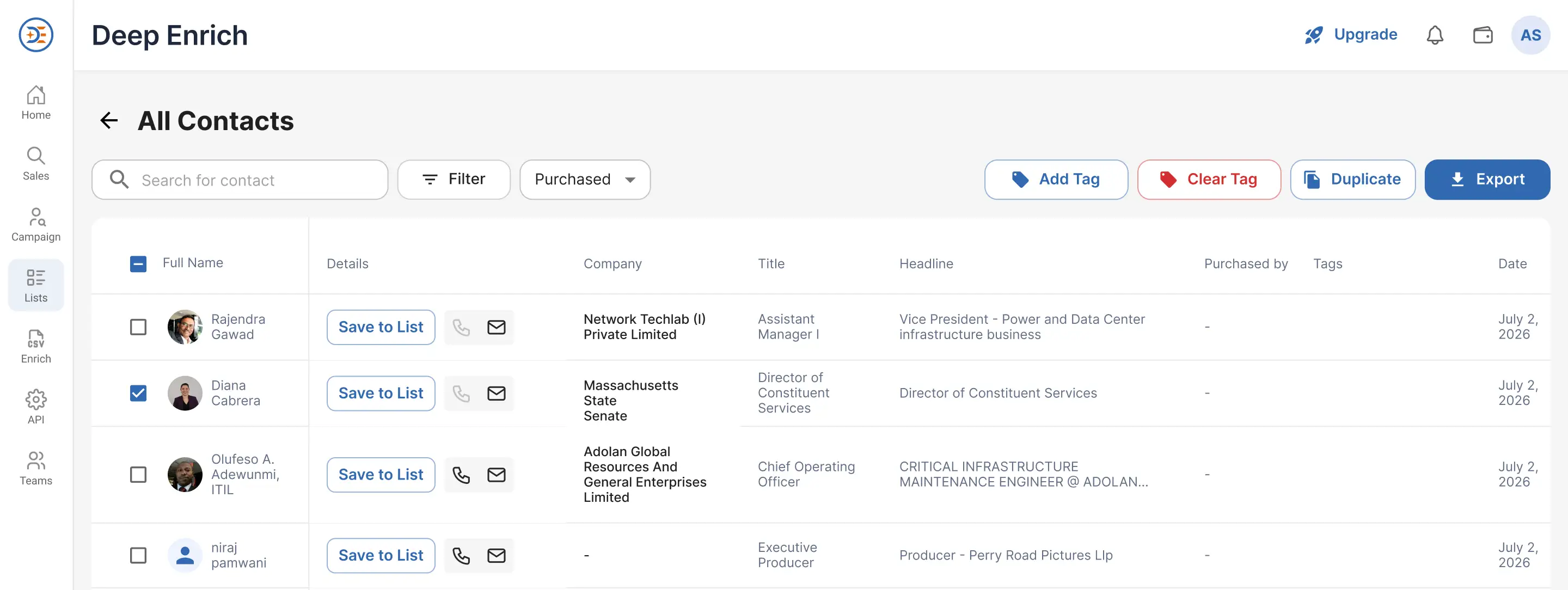
- Open the list containing the contact you want to report.
- Locate the contact record.
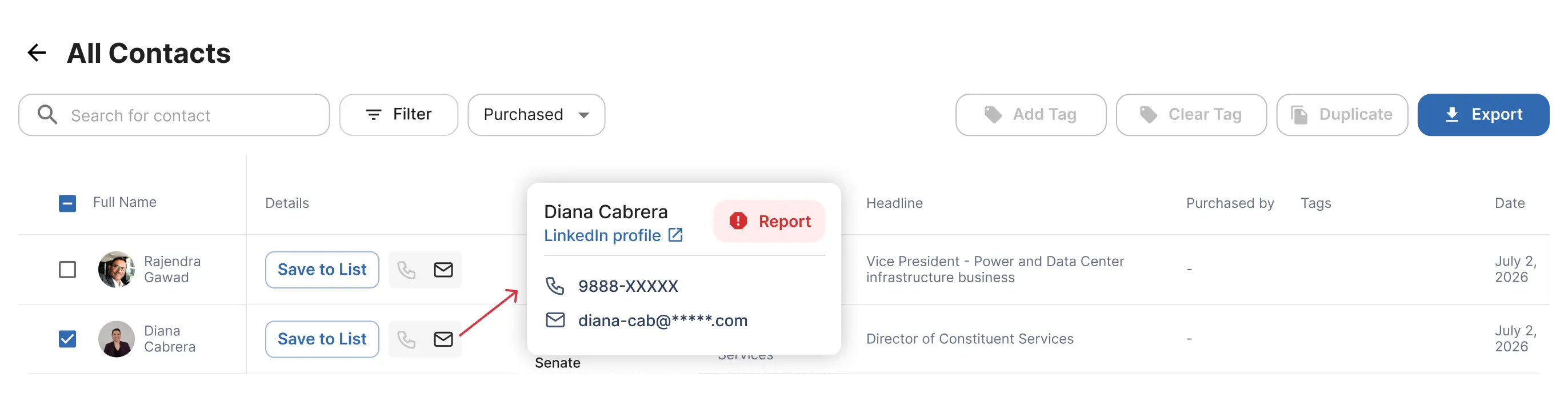
- Hover over the contact row.
-
Click the Report (Flag) icon.
Completing the Report Form
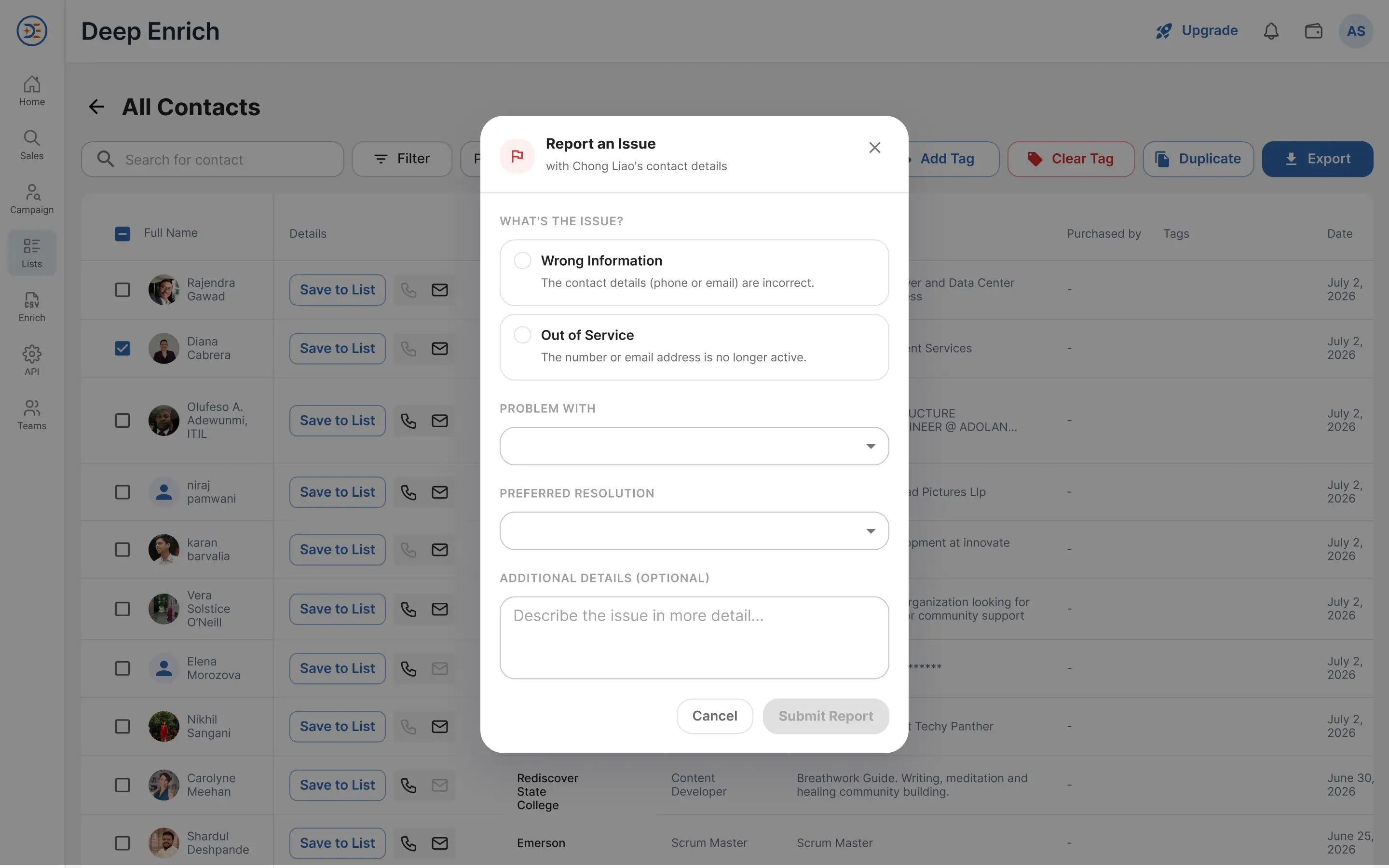
When submitting a report, you'll be asked to provide details about the issue.
-
Step 1: Select an Issue Category
Choose the option that best describes the problem.
-
Wrong Information: Select this option if:
- The email address is incorrect.
- The phone number is incorrect.
- The contact details belong to someone else.
-
Out of Service: Select this option if:
- The phone number is disconnected.
- The email address is no longer active.
- The contact information is unreachable.
-
Step 2: Specify the Affected Contact Detail
Use the Problem With dropdown menu to indicate which contact detail is causing the issue. Available options:
- Email Address
- Phone Number
-
Step 3: Choose a Resolution Preference
Select how you would like the issue to be resolved.
- Refund: Request a credit refund for the reported contact.
- Replacement / Refund: Request updated contact information whenever available.
-
Step 4: Add Supporting Details
Use the Description field to provide additional context about the issue. Examples:
- "Email returned a permanent bounce."
- "Phone number belongs to a different person."
- "Phone Number is disconnected."
- "Contact left the company."
Providing detailed information helps our team verify the issue more quickly and improves the accuracy of the resolution process.
Tracking Your Reported Contacts
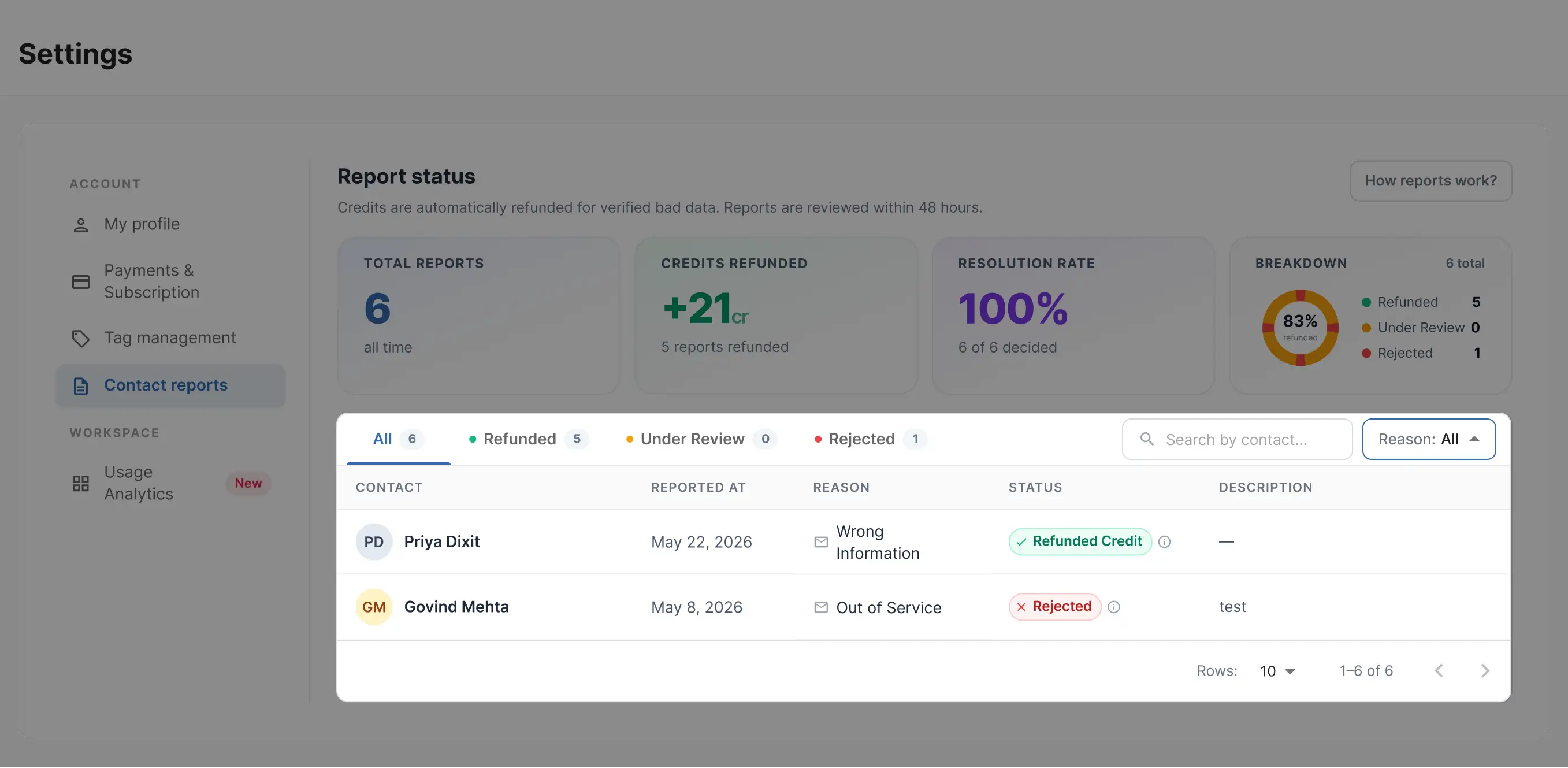
You can monitor all submitted reports and their current status from the Contact Reports section.
To view your reports
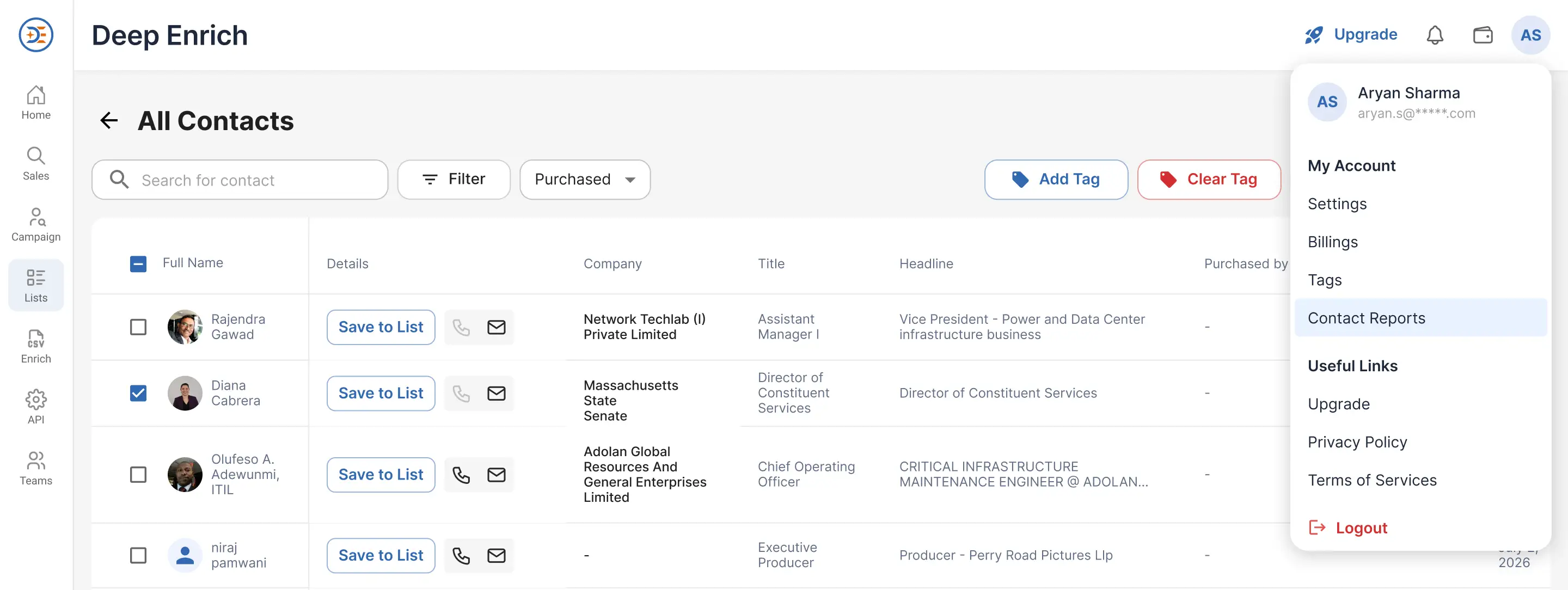
- Open Settings from the left navigation menu.
- Select Contact Reports
Review all submitted reports and their current statuses.
Contact Reports Dashboard
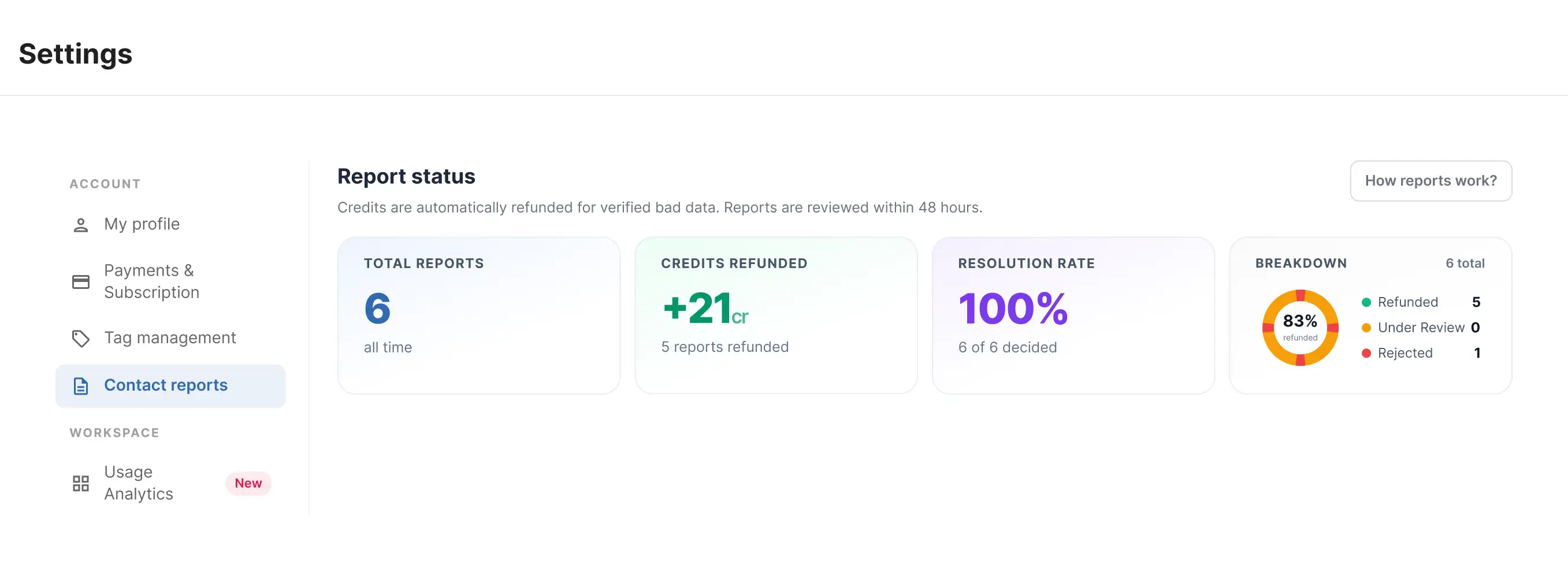
At the top of the Contact Reports page, you'll find a dashboard that provides a quick overview of your reporting activity.
The dashboard displays:
- Total Reports: Shows the total number of contact reports submitted.
- Credits Refunded: Displays the total number of credits successfully refunded through approved reports.
- Resolution Rate: Shows the percentage of reports that have been successfully resolved.
-
Status Breakdown: Provides a visual breakdown of reports by status, including:
- Refunded Credit
- Under Review / Reported
- Rejected
Understanding Report Statuses
Each report will be assigned a status based on its review outcome.
- Reported: Your report has been successfully submitted and is currently awaiting review.
- Replaced Info: The reported contact information has been verified and updated with new, valid contact details.
- Refunded Credit: The report has been approved, and the credits used for the contact have been returned to your account.
-
Rejected: The report was reviewed but did not meet the criteria for approval. This may occur when:
- The contact information could not be verified as invalid.
- The report did not qualify under reporting guidelines.
Searching and Filtering Reports
The Contact Reports page includes multiple filtering options to help you quickly locate specific reports.
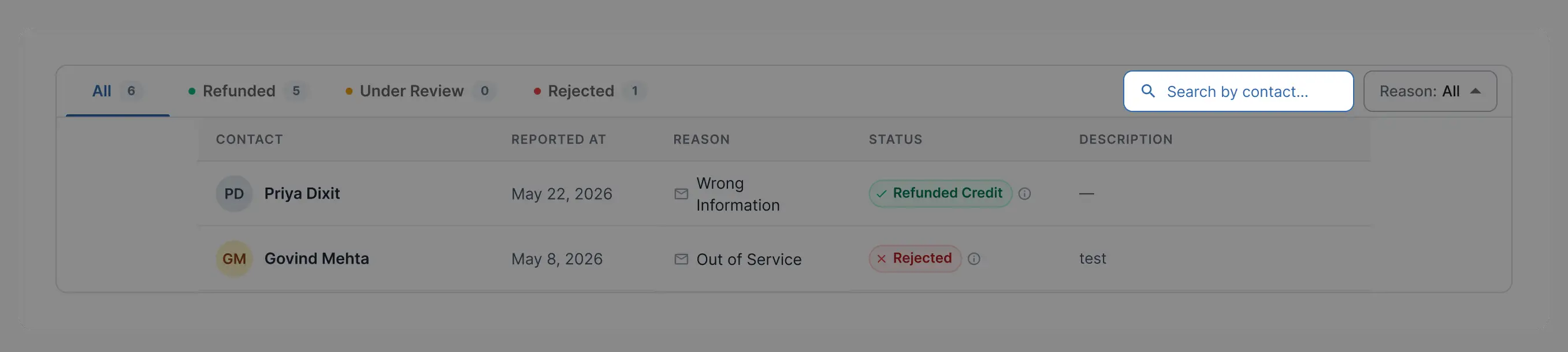
- Search by Contact Name:
Use the search bar to find reports related to a specific contact.
Simply enter the contact's name, and matching reports will be displayed instantly.
-
Filter by Status:
Use the Status filters to view reports based on their current state.
Available options include:
- All – Displays every submitted report.
- Reported – Displays reports currently under review.
- Replaced Info – Displays reports where updated contact information has been provided.
- Refunded Credit – Displays reports that resulted in a credit refund.
- Rejected – Displays reports that were reviewed but not approved.
-
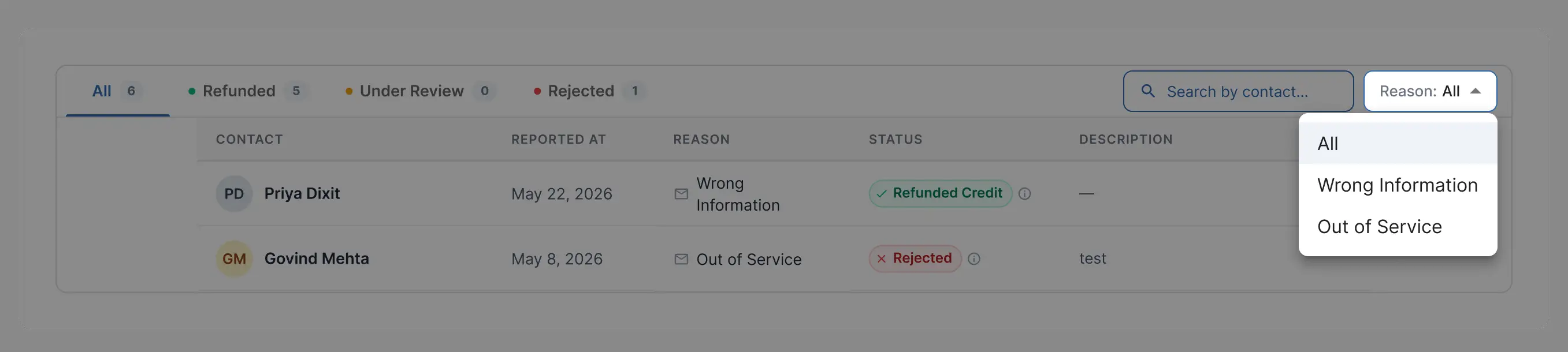
Filter by Reason:
Use the Reason dropdown to filter reports based on the issue category selected during submission.
Available options include:
- All
- Wrong Information
- Out of Service
This makes it easy to analyze and manage reports by specific issue type.
Important Notes
- All submitted reports are reviewed before a resolution is applied.
- Resolution times may vary depending on verification requirements.
- Credits are refunded only after a report has been approved.
- Replacement contact information is provided only when valid updated data is available.
- Submitting detailed and accurate information can help speed up the review process.
 Deep
Enrich
Deep
Enrich